Build a Telegram Bot in Go in 9 minutes

I like the Telegram messaging service; it has a beautiful interface and works on all types of devices. What I love the most about Telegram is the vibrant ecosystem of bots available there. Being for translation, to manage spam emails, or to set reminders, they come very handily, making Telegram one of those social media where I actually feel like a power user.
Telegram offers an API describing how to leverage their bot API. However, I found it hard to distinguish between the essentials to get your bot working and other niceties, resulting in lots of time skimming through the doc.
In this article, I provide you with an illustrated step-by-step guide on how to build your own Telegram Bot in 9 minutes.
I base my example on the RapGeniusBot I built (aka snoop). Snoop is a bot with which users can interact to generate original rap music lyrics based on the user’s input. The full code is available on my GitHub repository.
A working Bot in 6 steps
- Register your bot on Telegram
- Handle user requests
- Implement your handler (and add some test)
- Deploy your handler
- Set a webhook using the Telegram API
- Enjoy
1. Register your bot on Telegram
First, you need to tell Telegram you want to register a Bot. To do this, send the BotFather a /newbot
command. You get a token back. We'll use it in our code to authenticate our app against Telegram
servers.
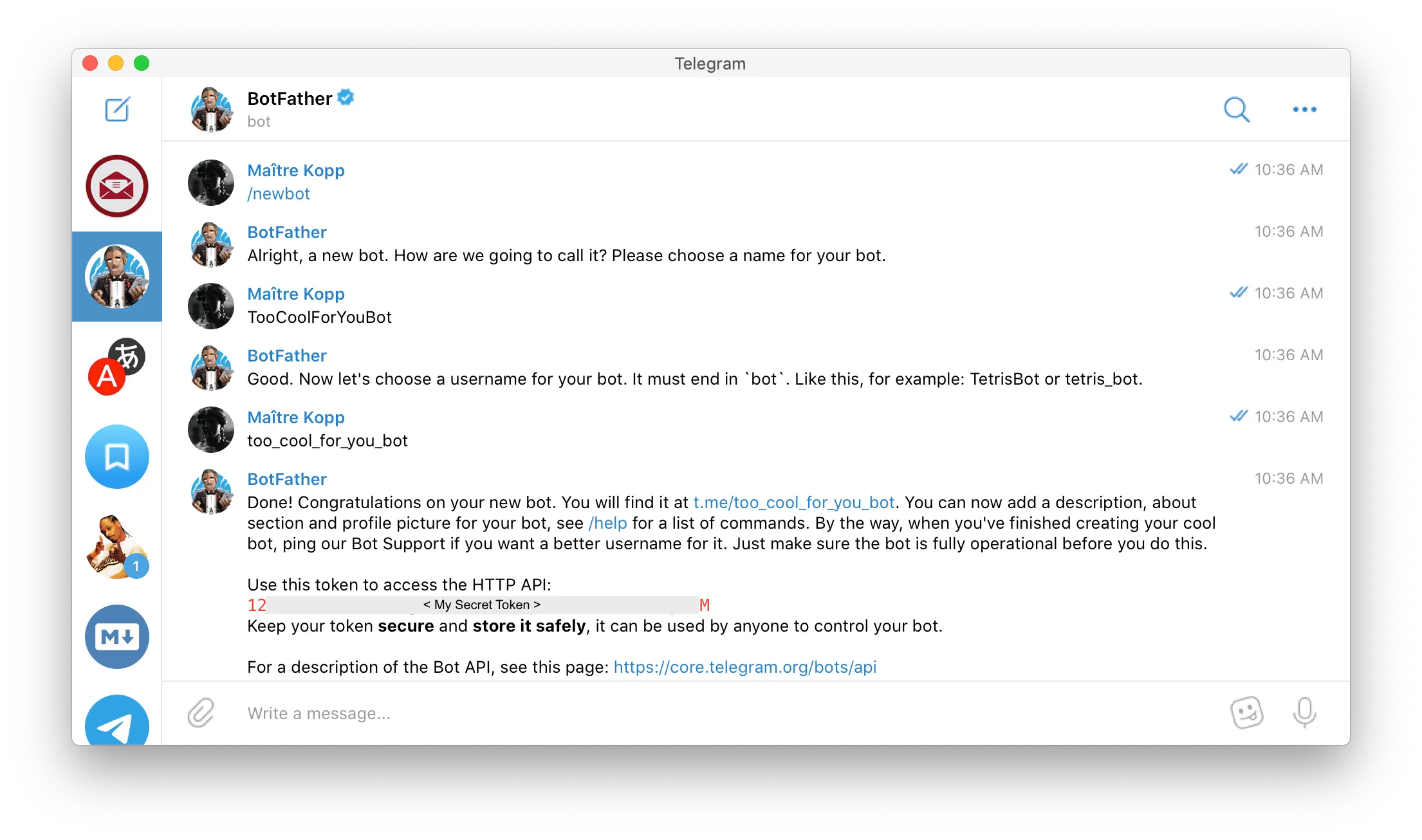
To double-check the bot creation worked, you can query the /getMe endpoint of the
Telegram API.
TELEGRAM_TOKEN="my-secret-token"
curl https://api.telegram.org/bot$TELEGRAM_TOKEN/getMe
If Telegram registered your bot, you get a short JSON summary of its characteristics in response
to
your /getMe request.
You gave your bot a cool profile picture as well as an accurate description of what it does? Sweet! Now let’s zoom in on how to implement your bot behavior to interact with users.
2. Handle user requests
The next step is to implement the business logic you want to happen whenever a user interacts with your bot. Before jumping straight into the code, let's consider what happens when a user interacts with your bot on Telegram.
Telegram is a cloud-based messaging service. When you send someone a message on Telegram, the Telegram servers receive your message and distribute it to the appropriate chat. See my GIF below:
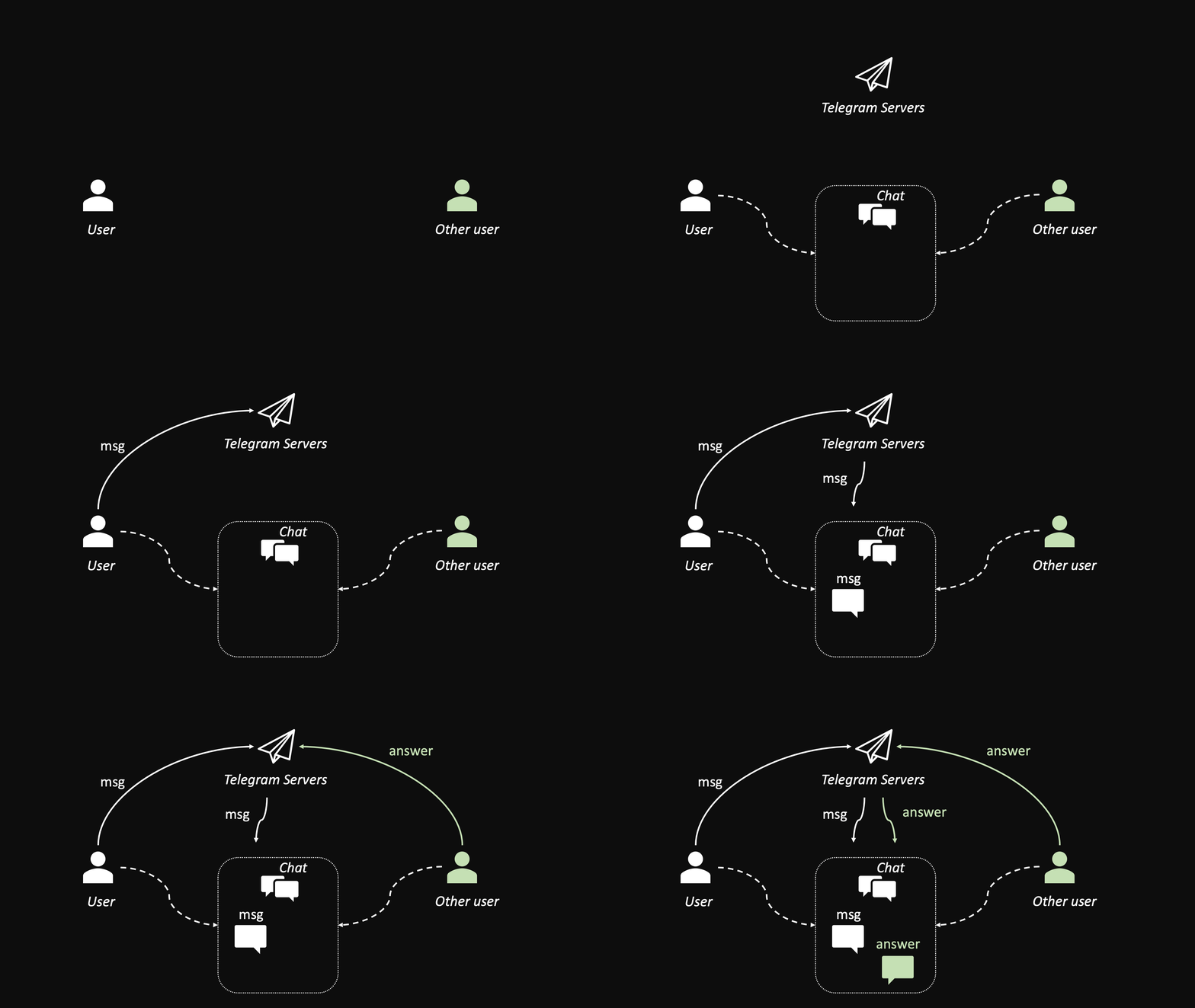
In a nutshell: You send a message, then Telegram servers distribute it to the appropriate chat, now your friend can see it. Your friend sends back an answer, which gets processed by Telegram servers to distribute the answer to the chat.
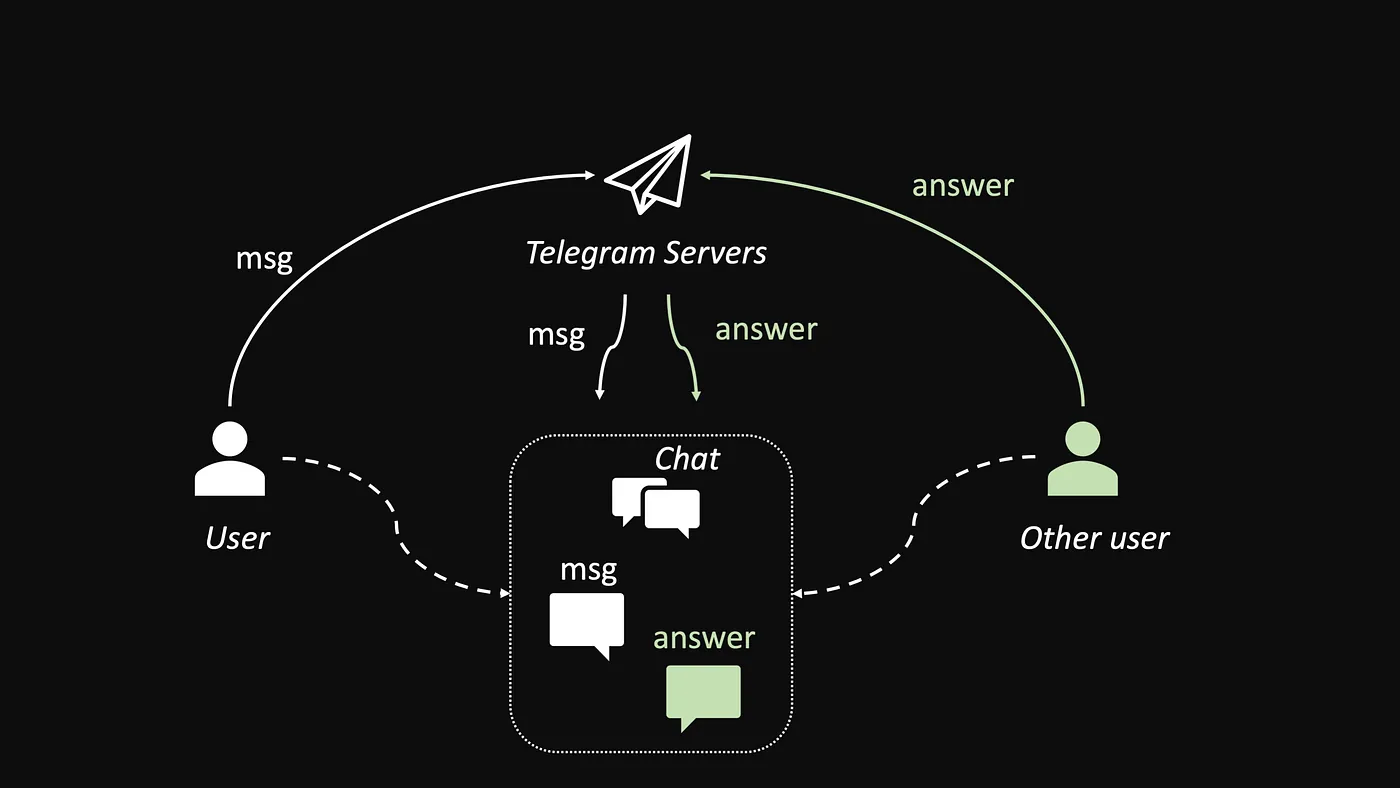
Cloud-based messaging makes it possible for you to access your chats from different devices. Building on top of the previous concepts, let’s see what happens when you message a bot on Telegram.
Whenever you send a message to a bot, Telegram notifies the webhook URL that an update is available for your bot to handle. Then, your handler processes the user request and sends a response back to Telegram. Ultimately, Telegram delivers your bot answer to the user. Take a look at the GIF below to get the idea:

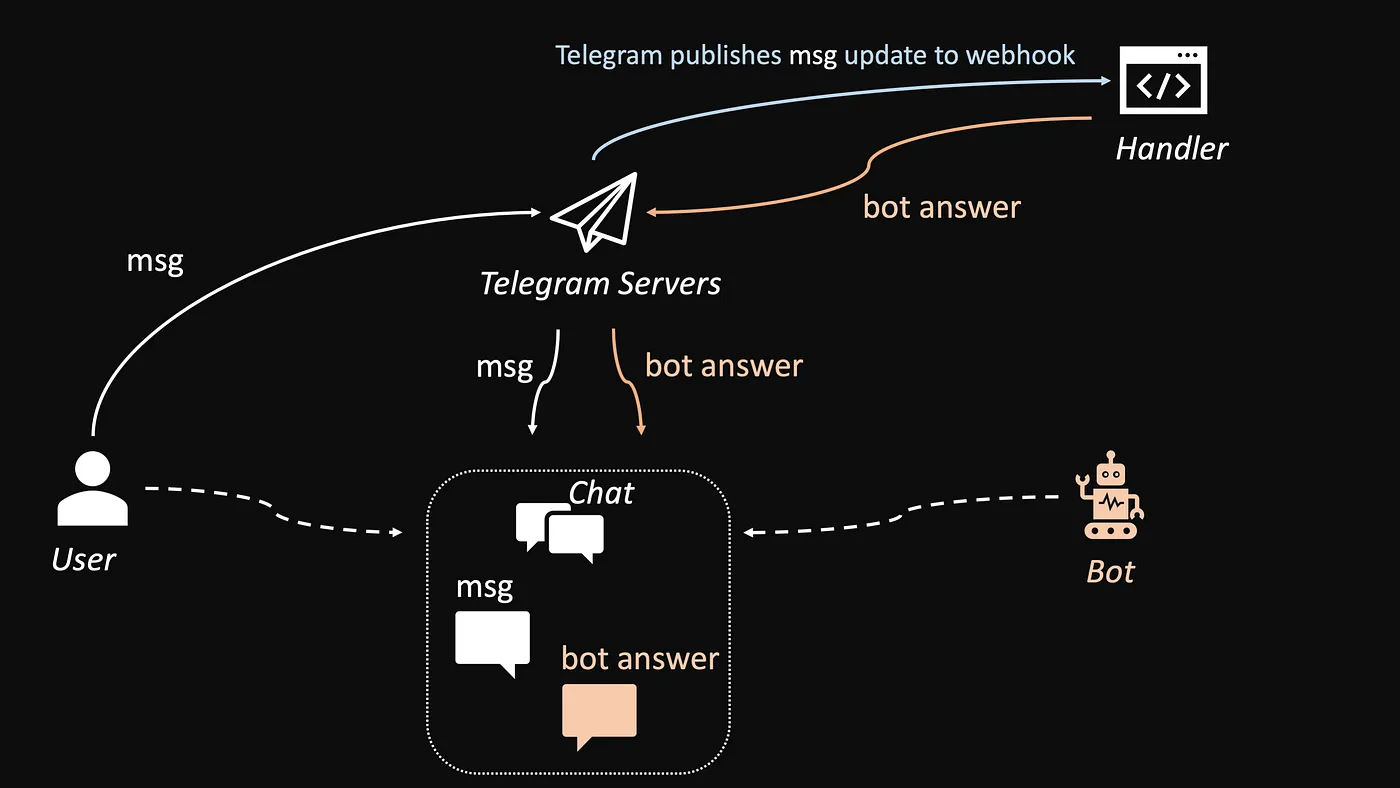
You now get the critical concepts. Let’s dive in. We’ll set up the webhook once we’re ready to deploy our bot handler.
3. Implement your handler
The mission of the handler is to handle incoming Updates from the
Telegram
API. Remember, every time
a user sends your bot a message, the webhook delivers your handler an
Update from Telegram.
A Telegram Update can contain different kinds of information: text message, voice
message, video, or
a document, to name a few. In this article, we’ll see how to process text messages. Feel free to
explore other options with audio, video, or a document processing bot!
Since the handler scope is mainly about handling responses and making API requests,
the
Go
programming language is a perfect tool.
The Telegram Update can be an intimating object with all its fields. Fortunately, we
can
represent it
with a simpler struct in Go to address our use case:
// Update is a Telegram object that the handler receives every time an user interacts with the bot.

type Update struct {
	UpdateId int     `json:"update_id"`
	Message  Message `json:"message"`
}
Similarly, we define a Message struct:
// Message is a Telegram object that can be found in an update.

type Message struct {
	Text     string   `json:"text"`
	Chat     Chat     `json:"chat"`
}
And finally a Chat struct:
// A Telegram Chat indicates the conversation to which the message belongs.

type Chat struct {
	Id int `json:"id"`
}
With those three structs; Update, Message, and Chat ,
we're
ready to process our users’ messages.
You notice the `json:"something"` on the right to each field of the struct. This is
to
indicate to
the JSON decoder how to parse an incoming Telegram Request into the appropriate struct. For
instance, `json:"update_id"` in the Update struct tells the JSON
decoder
to look for a key whose
name is update_id and set the matching value to the UpdateId attribute
of
our Go Update struct.
We can now easily decode an incoming Request containing an Update from Telegram.
// parseTelegramRequest handles incoming update from the Telegram web hook

func parseTelegramRequest(r *http.Request) (*Update, error) {
	var update Update
	if err := json.NewDecoder(r.Body).Decode(&update); err != nil {
		log.Printf("could not decode incoming update %s", err.Error())
		return nil, err
	}
	return &update, nil
}
Now that we parsed the request, we can access the Message.Text and do some magic.
It’s
your time to shine here; you can now develop the features that make your bot outstanding.
Below is an example from the RapGeniusBot, a bot that generates rap music lyrics based on the
Message.Text
of the incoming Update. The primary function of my handler is :
// HandleTelegramWebHook sends a message back to the chat with a punchline starting by the message provided by the user.
func HandleTelegramWebHook(w http.ResponseWriter, r *http.Request) {

	// Parse incoming request
	var update, err = parseTelegramRequest(r)
	if err != nil {
		log.Printf("error parsing update, %s", err.Error())
		return
	}

	// Sanitize input
	var sanitizedSeed = sanitize(update.Message.Text)

	// Call RapLyrics to get a punchline
	var lyric, errRapLyrics = getPunchline(sanitizedSeed)
	if errRapLyrics != nil {
		log.Printf("got error when calling RapLyrics API %s", errRapLyrics.Error())
		return
	}

	// Send the punchline back to Telegram
	var telegramResponseBody, errTelegram = sendTextToTelegramChat(update.Message.Chat.Id, lyric)
	if errTelegram != nil {
		log.Printf("got error %s from telegram, response body is %s", errTelegram.Error(), telegramResponseBody)
	} else {
		log.Printf("punchline %s successfully distributed to chat id %d", lyric, update.Message.Chat.Id)
	}
}
For the implementation details of each function, the complete code for RapGeniusBot is available on my repository.
Ok, now that you did some processing based on the value of the Message, you are ready to send a
Message back to the Chat. Let’s zoom on the sendTextToTelegramChat function to see
how
we can do
this:
// sendTextToTelegramChat sends a text message to the Telegram chat identified by its chat Id
func sendTextToTelegramChat(chatId int, text string) (string, error) {

	log.Printf("Sending %s to chat_id: %d", text, chatId)
	var telegramApi string = "https://api.telegram.org/bot" + os.Getenv("TELEGRAM_BOT_TOKEN") + "/sendMessage"
	response, err := http.PostForm(
		telegramApi,
		url.Values{
			"chat_id": {strconv.Itoa(chatId)},
			"text":    {text},
		})

	if err != nil {
		log.Printf("error when posting text to the chat: %s", err.Error())
		return "", err
	}
	defer response.Body.Close()

	var bodyBytes, errRead = ioutil.ReadAll(response.Body)
	if errRead != nil {
		log.Printf("error in parsing telegram answer %s", errRead.Error())
		return "", err
	}
	bodyString := string(bodyBytes)
	log.Printf("Body of Telegram Response: %s", bodyString)

	return bodyString, nil
}
Focus on lines 5 to 10. Here, we send our message to the chat by making a POST
request
to the
explicit /sendMessage endpoint of the Telegram API. To do this, you need to
authenticate using the
bot token the BotFather gave you during your bot creation.
Let’s recap; you now have a handler function that does all the processing,
- Your handler decodes incoming Telegram requests,
-
Your handler can access the fields of the
Update, like theMessage.Textto perform some transformation, like generating rap music lyrics in the example of the RapGeniusBot. - Your handler ultimately POSTs a message back to the chat that initiated the conversation.
Now is an excellent time to add some tests to ensure your handler works as expected. For
instance, we
can test that our handler correctly parses incoming Telegram requests. This is fairly easy using
the
net/http/httpest package in Go. Let’s write our test in a separate test file, for
example parse_update_test.go .
import (
	"bytes"
	"encoding/json"
	"net/http/httptest"
	"testing"
)

func TestParseUpdateMessageWithText(t *testing.T) {
	var msg = Message{
		Text: "hello world",
		Chat: chat,
	}

	var update = Update{
		UpdateId: 1,
		Message:  msg,
	}

	requestBody, err := json.Marshal(update)
	if err != nil {
		t.Errorf("Failed to marshal update in json, got %s", err.Error())
	}
	req := httptest.NewRequest("POST", "http://myTelegramWebHookHandler.com/secretToken", bytes.NewBuffer(requestBody))

	var updateToTest, errParse = parseTelegramRequest(req)
	if errParse != nil {
		t.Errorf("Expected a nil error, got %s", errParse.Error())
	}
	if *updateToTest != update {
		t.Errorf("Expected update %s, got %s", update, updateToTest)
	}

}
Want to write more tests to ensure everything works as expected? Telegram does an fantastic job by providing developers with sample update JSON to use for our test cases, make sure to check them out on their documentation to build a robust handler.
Nice! All this code lives beautifully on our machine. Let’s now deploy the handler
and
make your bot
available on Telegram. Don’t worry; you’re already 95% done by now
4. Deploy your handler
Two possibilities,
- You have your own server, and you know how to set up your handler to listen to a given port. You also are comfortable setting up certificates.
- You’re not that much into SysAdmin.
If you recognize yourself in 1., Telegram offers detailed documentation on how to set up your webhook.
I’ll focus on option 2. We’ll use a cloud provider to deploy our handler as function-as-a-service, meaning you’re billed only when your handler actually uses resources. Given the nature of the webhook push mechanism, you’ re not charged if your bot is not used, which is nice compared to an always-on server. The disadvantage is a potential higher response time. When the handler is called for the first time in a while, the cold start can take a few seconds.
All major cloud providers provide function-as-a-service: Cloud Function on Google Cloud, AWS Lambda, and Azure Function on MS Azure. Pick your weapon of choice. I continue with Google’s Cloud Function.
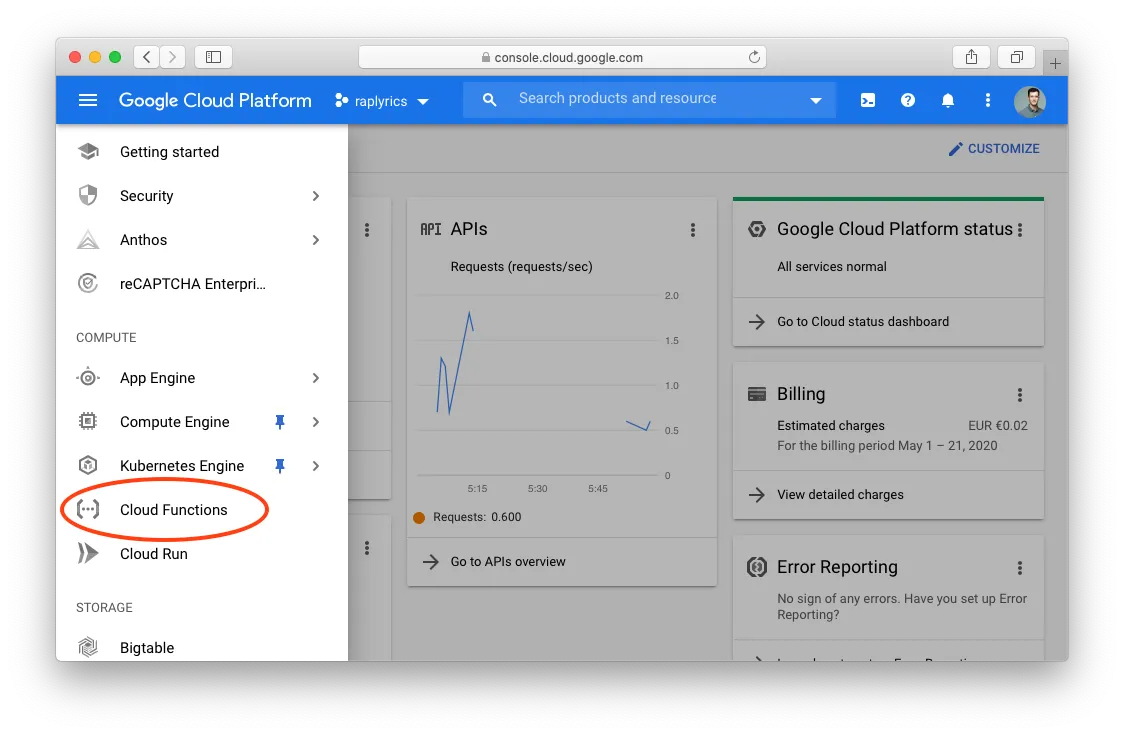
On Google Cloud console, first, select a project (create one if you’re new to Google Cloud). Then, click on the top left burger menu and find the Cloud Function.
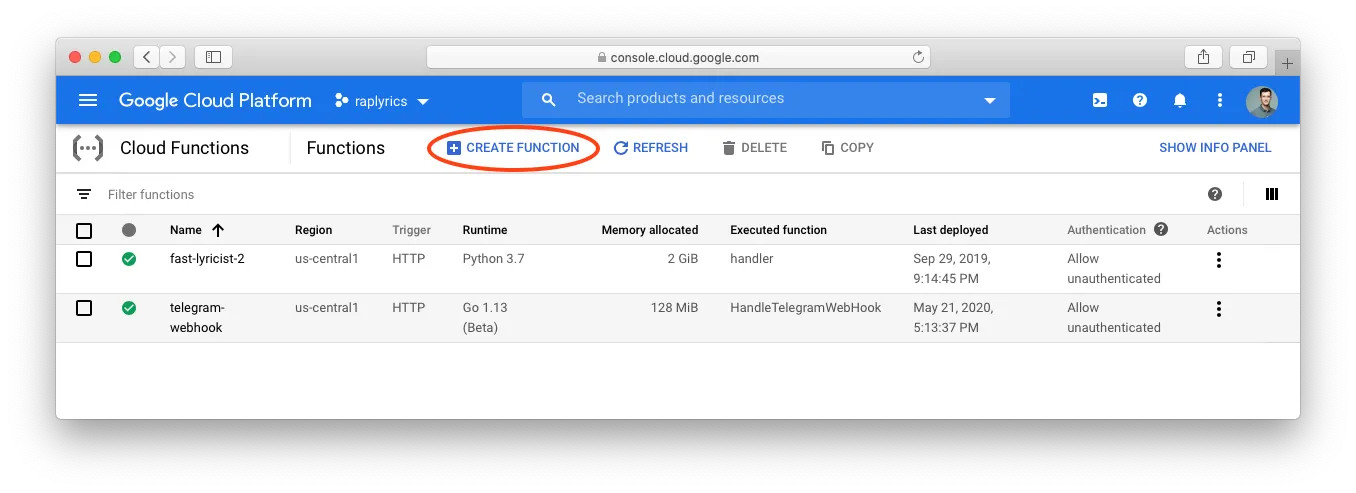
Then, click on the “Create Function” button.
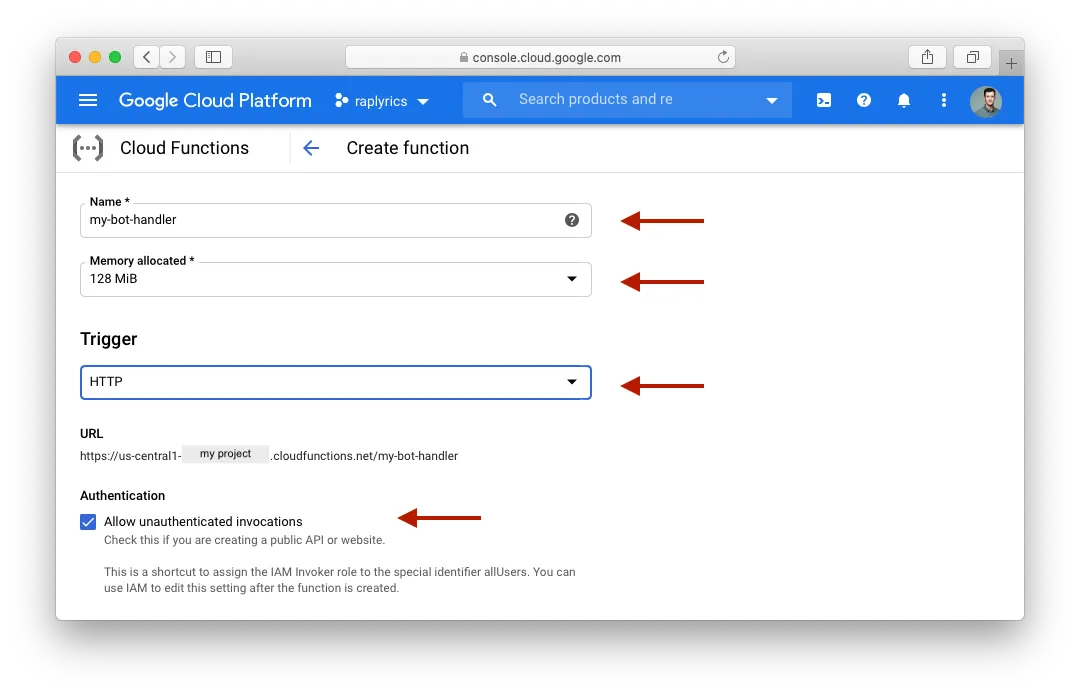
Now let’s complete some config information;
-
Name — set an explicit name for your function, e.g.,
telegram-bot-handler. - Memory allocated — I advise you experiment starting from the smallest value 128 MiB should be enough. Go is not memory hungry, especially if you only make a few requests in your handler or some simple string processing. Plus, it’s likely your handler is only a middle-man passing the query to another service. In the example of RapGeniusBot, my handler calls another API to get the music lyrics based on the text of the message to process.
- Trigger — make sure to select HTTP.
- Authentication — Check the “Allow unauthenticated invocations”. This will make it possible for Telegram to send Update to your handler through the webhook.
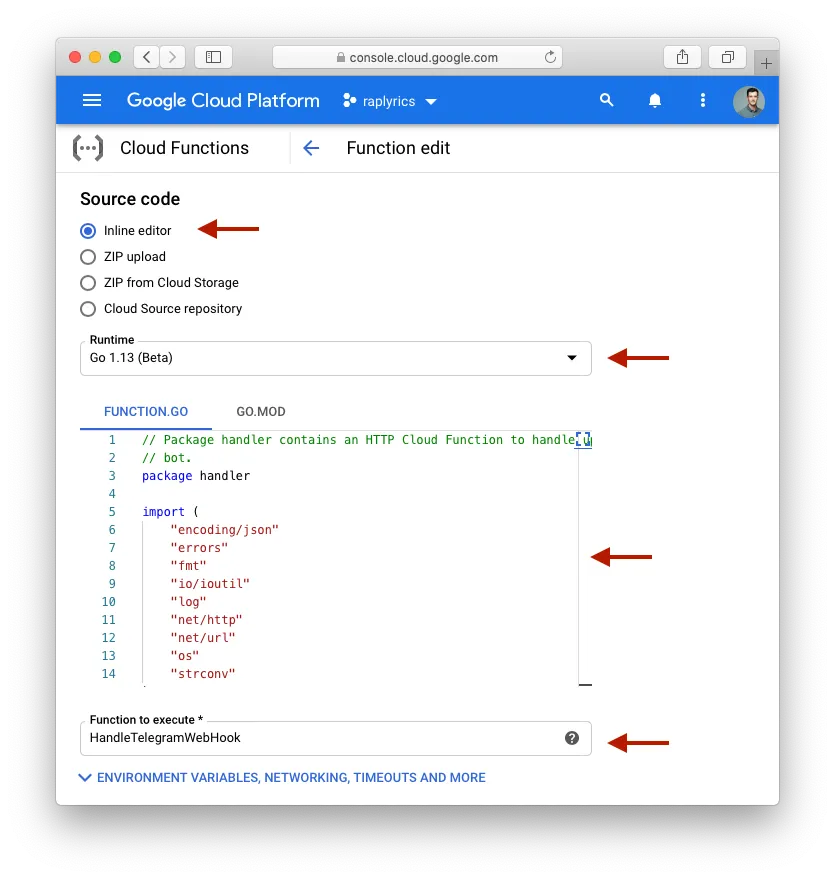
Scroll some more, and you can submit the source code to execute upon your function invocation;
- Source code — Select “Inline editor”
- Runtime — Select the runtime matching your Go code.
- Function.go — Copy all your handler code (don’t forget the imports) and paste it within the Function.go text box.
- Function to execute — Write the function that google servers should call when your cloud function is invoked. Here it is your handler, e.g., HandleTelegramWebHook.
Now click on “Environment variables, networking, timeouts and more”.
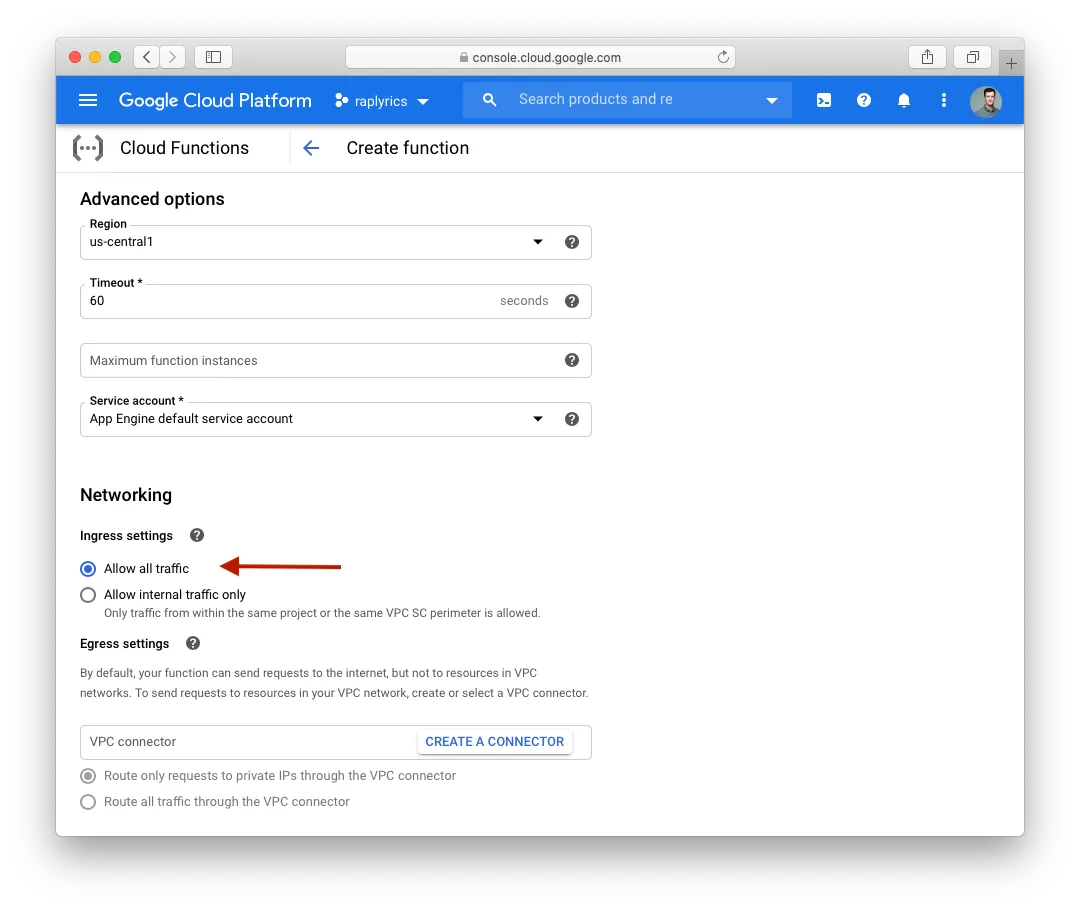
A bunch of options appears, adjust Region and Timeout to match any requirements you may have.
- Ingress settings — Make sure to check “Allow all traffic” so that Telegram servers can access your handler.
Last but not least, set the environment variable your code needs. You need, at least, to set the
TELEGRAM_BOT_TOKEN
the BotFather gave you in part 1.
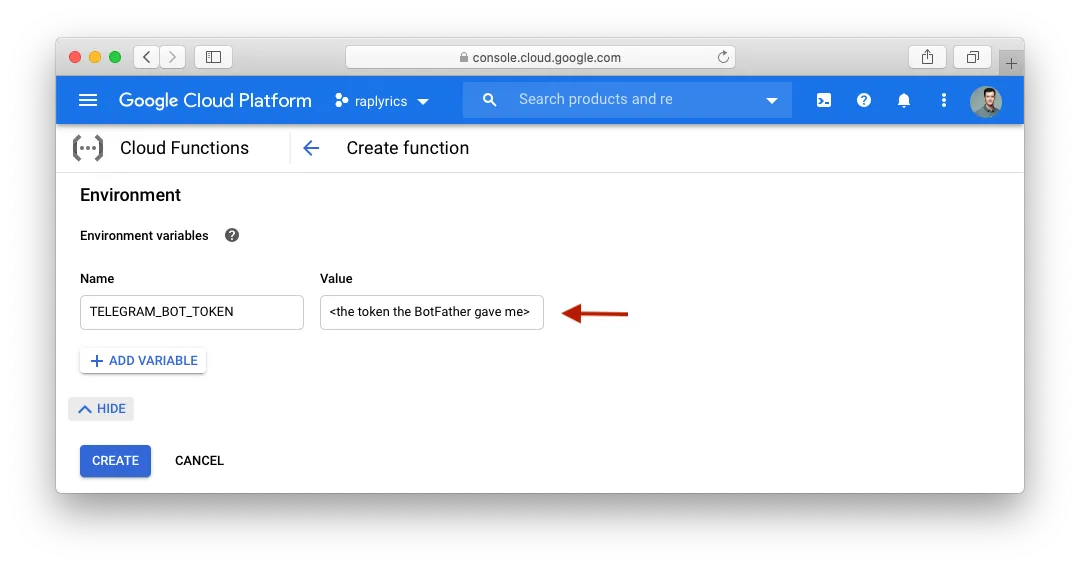
Click “create”. Your cloud function is ready in a few seconds.
Now navigate to the “Trigger” tab of your newly created Cloud function and copy the URL for your
function
invocation. We will tell Telegram to send Updates to this URL when defining the webhook
in
the next step.
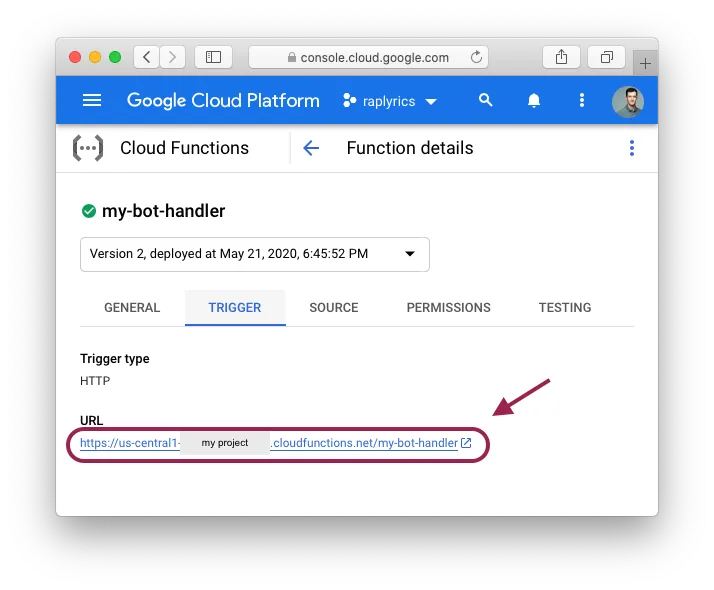
That’s it; you’re done with your cloud provider! The only thing left to do is to set up the webhook URL of your Telegram Bot.
5. Set a webhook using the Telegram API
Final step!
Now that we created our cloud function, we need to register its URL as the webhook URL to Telegram.
Like
this, Telegram can push Updates for our bot to the URL on which our
handler is
listening.
That’s 3 lines in your shell.
TELEGRAM_TOKEN="my-secret-token"
CLOUD_FUNCTION_URL="https://my-cloud-provider/my-bot-handler"

curl --data "url=$CLOUD_FUNCTION_URL" https://api.telegram.org/bot$TELEGRAM_TOKEN/SetWebhook
You get a nice {“ok”:true,”result”:true,”description”:”Webhook was set”} as response
from
the Telegram API.
6. Enjoy
Congrats, your bot is now live!
Chat with it in Telegram and share it with your friends. By this point, you built an amazing Telegram Bot!
References
- Introduction to Telegram Bots, https://core.telegram.org/bots
- The Telegram Bot API, https://core.telegram.org/bots/api.
- Telegram Documentation — How do bots work?, https://core.telegram.org/bots#2-how-do-bots-work.
- Telegram Guide to Webhook, https://core.telegram.org/bots/webhooks
- Rap Genius Telegram Bot code, https://github.com/fpaupier/telegrap
- Telegram Bot API Go wrapper — overkill for simple bots IMHO, but can come handy if you have an advanced use case. https://github.com/go-telegram-bot-api/telegram-bot-api